20 Useful Git Commands Every Developer Should Know
Twenty Git commands that cover nearly all daily work — what each one does, when to reach for it, and copy-ready examples for your terminal.
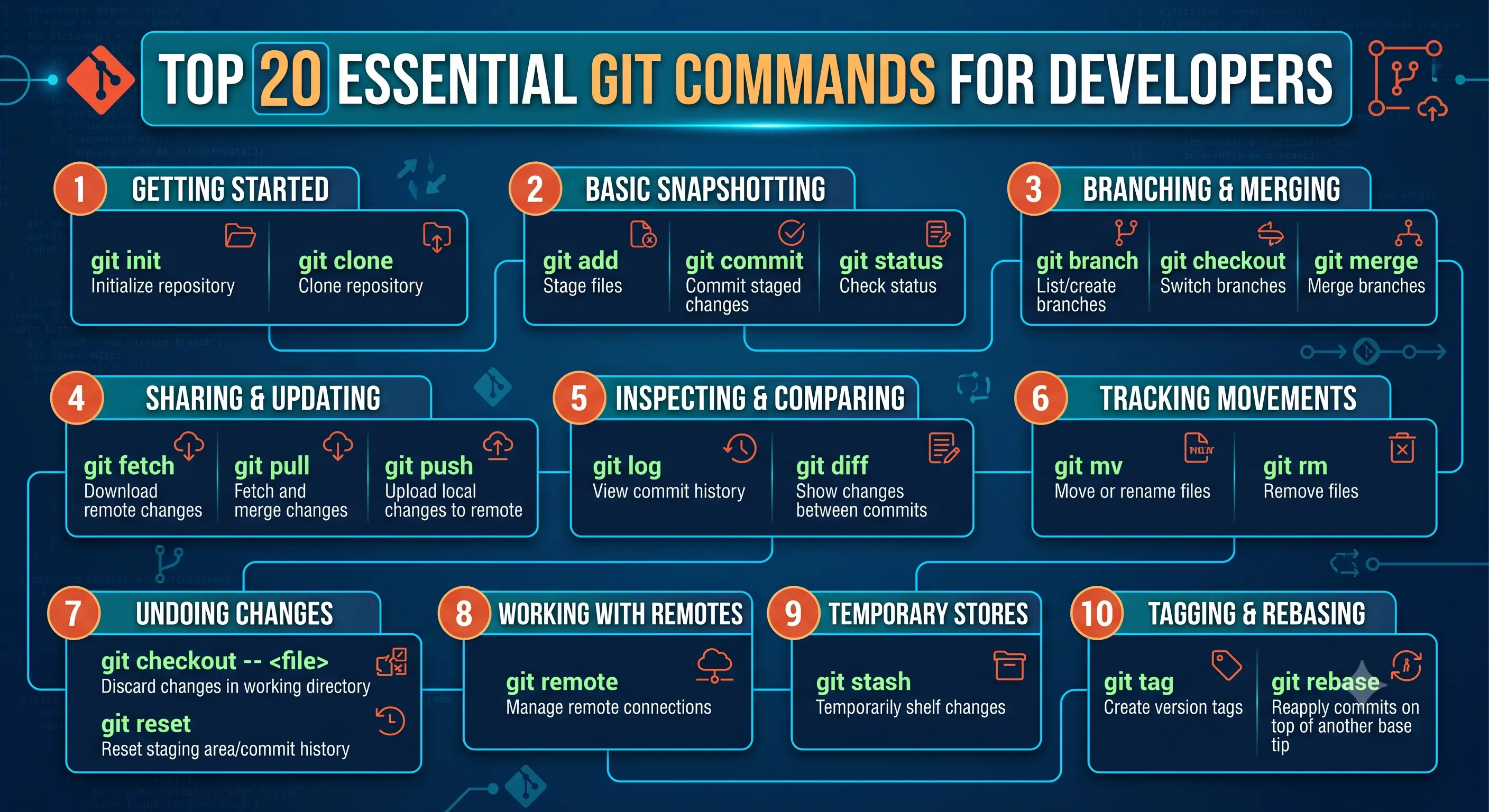
Git has hundreds of commands, but day-to-day work runs on a much smaller set. These are the twenty I reach for constantly — each with what it does, when to use it, and an example you can copy straight into your terminal.
1. git init
Turns the current folder into a Git repository by creating the .git directory. The first command of every new project.
git init
# initialize with a specific default branch name
git init -b main
2. git clone
Downloads an existing repository — full history included — and sets up origin as the remote automatically.
git clone https://github.com/devwadood/example.git
# shallow clone when you only need recent history
git clone --depth 1 https://github.com/devwadood/example.git
3. git status
Shows what changed, what is staged, and what is untracked. The command you will run more than any other.
git status
# compact view
git status -sb
4. git add
Stages changes for the next commit. Stage everything, a single file, or interactively pick hunks with -p.
git add .
git add src/app/page.tsx
# review and stage hunk by hunk
git add -p
5. git commit
Records the staged snapshot with a message. --amend rewrites the last commit when you forgot something.
git commit -m "feat: add contact form"
# add forgotten changes to the previous commit
git add . && git commit --amend --no-edit
6. git push
Uploads local commits to the remote. -u links the branch so future pushes need no arguments.
git push -u origin feature/contact-form
# subsequent pushes
git push
7. git pull
Fetches remote changes and merges them into your branch. With --rebase it replays your commits on top instead of creating a merge commit.
git pull
# keep history linear
git pull --rebase
8. git fetch
Downloads remote changes without touching your working branch — look first, integrate later. Safer than a blind pull.
git fetch origin
# then inspect what changed
git log HEAD..origin/main --oneline
9. git branch
Lists, creates, or deletes branches. -d refuses to delete unmerged work; -D forces it.
git branch
git branch feature/blog
# delete a merged branch
git branch -d feature/blog
10. git switch
Moves between branches — the modern, purpose-built replacement for that half of git checkout. -c creates and switches in one step.
git switch main
# create and switch
git switch -c feature/payments
11. git merge
Brings another branch's commits into yours. Fast-forwards when possible, otherwise creates a merge commit tying both histories together.
git switch main
git merge feature/payments
# always keep an explicit merge commit
git merge --no-ff feature/payments
12. git rebase
Replays your commits on top of another branch for a linear history. -i opens interactive mode to squash, reword, or drop commits before opening a PR.
git rebase main
# clean up the last 4 commits
git rebase -i HEAD~4
13. git log
Browses history. The graph one-liner below is the fastest way to understand what happened on a repository.
git log --oneline --graph --all
# search history for a change
git log -S "resumeUrl" --oneline
14. git diff
Shows exactly what changed. Bare for unstaged edits, --staged for what is about to be committed, or between any two refs.
git diff
git diff --staged
git diff main..feature/payments
15. git stash
Shelves uncommitted changes so you can switch context with a clean tree, then brings them back with pop. -u includes untracked files.
git stash push -u -m "wip: half-done form"
git stash list
git stash pop
16. git cherry-pick
Copies specific commits onto your current branch — ideal for pulling a hotfix into a release branch without merging everything else.
git cherry-pick 4f9d2ab
# pick a range without committing yet
git cherry-pick A..B --no-commit
17. git reset
Moves the branch pointer backwards. --soft keeps changes staged, --mixed keeps them in the tree, --hard discards them — use that last one deliberately.
# undo the last commit but keep the work staged
git reset --soft HEAD~1
# unstage a file
git reset HEAD src/app/page.tsx
18. git revert
Undoes a commit by creating a new commit with the inverse change. The safe undo for anything already pushed to a shared branch.
git revert 4f9d2ab
# revert a merge commit
git revert -m 1 9c1e7fd
19. git tag
Marks a commit with a permanent name — releases, mostly. Annotated tags (-a) carry a message, author, and date.
git tag -a v1.0.0 -m "First production release"
git push origin v1.0.0
20. git bisect
Binary-searches history to find the exact commit that introduced a bug. Mark one good and one bad commit; Git halves the range until the culprit is found.
git bisect start
git bisect bad
git bisect good v1.0.0
# test, then mark each step good/bad until Git names the commit
git bisect reset
Where to go from here
Fluency comes from the loop you repeat every day: status → add -p → commit → push. Learn rebase -i, stash, and bisect on top of that and you can get out of nearly any situation Git puts you in.